Time management/prioritizing
-
There will be many, many maintenance tasks in your repository. Therefore, it is important to know how to prioritize them. Prioritization doesn't mean that lower priority things are never done, rather, it just defines what order they are done.
-
Pipelines aren't physical beings, rather, they are simply software that runs on a server. Therefore, maintenance occurs for higher-level things, such as the pipeline taking longer to run, or containing outdated dependencies.
-
Try to consolidate workarounds for scripts, for example, if many manual steps need to be performed before executing a script, then it might make sense to roll those into the script itself.
-
Removing user accounts for users that no longer exist.
-
Keeping the application in a stable, modular state and with good code health. Code coverage?
-
Dependabot high or critical alerts are important to be fixed, those with "Development" are much lower priority (even if they are marked as critical.) If you don't update, your app will keep working but it might be vulnerable to security risks. Having tests is helpful because it instills confidence in the new changes, such as upgrading the packages (i.e., your workflow will run on dependabot things.) There are two main ways to upgrading dependencies: always use the latest version, or, to pin to a version (but potentially miss out on on security updates.)
-
Updating transitive dependencies can be interesting. You can force the transitive dependency to the new version, but this is risky because the parent package has not been tested with it. The other approach is to upgrade the parent package, assuming that it is still compatible (and might fix other security issues.) You can limit dependabot to just show security issues (or somehow be able to differentiate based on that.)
-
Updating the base image is important. If it is not updated, then workflow will start failing.
-
If you use the latest package when you're installing software (e.g., apt-get) then you'll get the latest security fixes, at the cost of the build not being reproducible.
-
Dependencies in your workflow will change often. This is a high maintenance item and is likely why you will have to revise your workflow. For example, new versions of Node are released, and older versions are deprecated. Or, your software might have extra dependencies that it needs. Or, the base image that you're using might use a different version of the dependency, or it might no longer exist, so you'll have to update it.
-
Subscribe to deprecation Archives - The GitHub Blog (RSS feed) and somehow email new articles to you/someone or create tasks in your project management software that have due dates. This ensures that you acknowledge potentially breaking things to your workflow. Some of the deprecated things like https://github.blog/changelog are not part of the deprecation archives unfortunately, so you may need to subscribe to both.
-
Subscribing to deprecation only is difficult, because items are not always tagged correctly, see: (sometimes "end of life" is used, sometimes they are not tagged.) I filed GitHub feedback, hoping they are tagged correctly. Otherwise subscribe to "end of life", "deprecation", "breaking changes", "removal", "brown out".
-
Consider removing stale branches, assuming that they are not associated to a particular release (e.g., only for a PR.) This can make it easier for others to push to the correct branch and clarifies the lines of development.
-
Lots of tweaks for caching, not running at certain times (e.g., ignore-branch, ignore files, etc.)
-
You can disable tests in the tests themselves without having to disable the entire workflow.
-
https://github.blog/changelog/2023-10-19-codespaces-repository-access-and-security-setting-removal/
-
https://github.blog/changelog/2023-10-12-deprecation-source-imports-rest-api/
-
https://github.blog/changelog/2023-09-29-codeql-code-scanning-deprecates-ml-powered-alerts/
-
https://github.blog/changelog/2023-09-22-github-actions-transitioning-from-node-16-to-node-20/
-
https://github.blog/changelog/2023-07-24-github-actions-update-on-save-state-and-set-output-commands/
-
https://github.blog/changelog/2023-07-17-github-actions-removal-of-node12-from-the-actions-runner/
-
https://github.blog/changelog/2023-06-13-github-actions-all-actions-will-run-on-node16-instead-of-node12-by-default/
-
https://github.blog/changelog/2023-05-04-github-actions-all-actions-will-run-on-node16-instead-of-node12/
-
https://github.blog/changelog/2023-03-07-custom-repository-roles-api-ga-and-breaking-change/
-
https://github.blog/changelog/2023-02-21-github-pages-deprecating-symlinks-in-non-actions-builds/
-
https://github.blog/changelog/2023-01-18-code-scanning-codeql-action-v1-is-now-deprecated/
-
https://github.blog/changelog/2022-12-07-updated-timeline-for-the-deprecation-of-codeql-action-v1/
-
https://github.blog/changelog/2022-11-01-npm-signature-verification-using-pgp-keys-is-now-deprecated/
-
https://github.blog/changelog/2022-10-11-github-actions-deprecating-save-state-and-set-output-commands/
-
https://github.blog/changelog/2022-09-22-github-actions-all-actions-will-begin-running-on-node16-instead-of-node12/
-
https://github.blog/changelog/2022-08-22-github-pages-deprecating-the-theme-picker/
-
https://github.blog/changelog/2022-08-09-github-actions-the-ubuntu-18-04-actions-runner-image-is-being-deprecated-and-will-be-removed-by-12-1-22/
-
https://github.blog/changelog/2022-07-20-github-actions-the-macos-10-15-actions-runner-image-is-being-deprecated-and-will-be-removed-by-8-30-22/
-
https://github.blog/changelog/2022-04-27-code-scanning-deprecation-of-codeql-action-v1/
-
https://github.blog/changelog/2022-04-25-git-io-deprecation/
-
https://github.blog/changelog/2022-03-23-pull-panda-is-shutting-down/
-
https://github.blog/changelog/2022-03-15-deprecating-the-npm-public-roadmap/
-
https://github.blog/changelog/2022-02-11-legacy-delete-reactions-rest-api-removed/
-
https://github.blog/changelog/2021-11-16-deprecating-non-audit-related-advisory-fetch-endpoints-for-the-npmjs-com-registry-api/
-
https://github.blog/changelog/2021-09-21-codeql-runner-deprecation/
-
https://github.blog/changelog/2021-05-04-elm-0-18-deprecation-in-dependabot-version-updates/
-
https://github.blog/changelog/2021-01-28-github-actions-breaking-change-net-core-3-0-will-be-removed-from-macos-and-ubuntu-images/
-
https://github.blog/changelog/2021-01-21-github-actions-short-sha-deprecation/
-
https://github.blog/changelog/2020-11-30-meta-api-deprecation-of-md5-signatures/
-
https://github.blog/changelog/2020-11-09-github-actions-removing-set-env-and-add-path-commands-on-november-16/
-
https://github.blog/changelog/2020-10-01-github-actions-deprecating-set-env-and-add-path-commands/
-
https://github.blog/changelog/2019-12-10-github-actions-aws-and-gcloud-actions-deprecated/
-
Don't fix linting errors yourself. Use an IDE plugin to auto fix the linting issues on save. Otherwise you will waste a lot of time. Same with code formatters, auto format on save.
-
You may find it useful to go through historical PR comments and identify themes of issues--you may use ChatGPT for this to help group the types of issues together. For example,
-
for PR in $(gh pr list --repo angular/angular --limit 10000 --json number | jq .[].number); do gh api repos/angular/angular/pulls/$PR/comments | jq '.[].body'; done;
Determining the "top 5" most useful patterns from the "Busy Person Patterns" can vary based on individual needs and contexts. However, commonly encountered scenarios in busy schedules might make the following patterns particularly valuable: warning this is creative commons licensed
-
Prioritize: This is fundamental for effective time management. By prioritizing tasks based on urgency and importance, you can ensure that the most critical tasks are addressed first, which is crucial in a busy schedule.
-
Just Start: Procrastination can be a significant barrier to productivity. This pattern encourages starting a task, even with incomplete information, which can be particularly useful in overcoming initial inertia and making progress.
-
Contiguous Time Blocks: In an era of constant interruptions, dedicating uninterrupted time to a task can significantly improve focus and efficiency, especially for complex or demanding tasks.
-
Delegate: This pattern is key in workload management, especially for those in leadership roles or working within teams. Delegating tasks effectively can help manage your workload and also empower others by entrusting them with responsibilities.
-
Batch the Simple Stuff: By grouping similar small tasks, you can handle them more efficiently, freeing up time for more significant tasks. This pattern is particularly useful for managing the multitude of minor tasks that can otherwise fragment your day.
Each of these patterns addresses a common challenge in managing a busy schedule, from starting tasks effectively to managing time and delegating work. The choice of patterns, however, should be tailored to individual work habits, the nature of the tasks, and personal productivity rhythms.
Stuff
-
Ternary Operators in GitHub Actions (7tonshark.com) if/else is a super big pain and has a lot of pitfalls, I'd probably recommend using/creating a custom action for this. Probably just invert the statement for subsequent steps if you want something easier. Or calculate it in bash.
-
The other thing is if you are using a lot of if/else statements, then you might consider creating a new workflow, as you might be handling too many unrelated tasks in one workflow. Consider it, for example, if you're compiling for two different architectures for example, then switching back and forth between if/else can be messy and confusing. Use matrix builds as well if you need a switch statement. Depends on where and what you're using the if statements for; if you're trying to do something in bash then it might make sense to write it as an if statement in bash. In some cases, this is impossible if you're switching a job or if you're conditionally enabling a step that uses an action (because you can't both write a bash script and use an action in the "run" clause unless it's specifically a bash action.)
-
The CI pipelines should avoid vendor lock-in as those are likely to be run locally, so try to avoid GitHub-specific actions as those are difficult to run locally. If there are vendor-specific steps that you'll have to change anyway, for example, using GitHub's artifacts, then therefore you might have to leave those as-is, they are difficult to change. The CD pipeline might not be run locally, as there usually isn't a need to deploy to production locally and deploying locally is likely not going to preserve auditable logs in a location where they aren't tampered with.
-
Changelogs are useful for teams, as well as QA people on those teams (e.g., knowing what to test)
-
If people use a consistent git formatting message (e.g., commit message), then the changelogs can be auto-generated with special sections, etc., based on those commit messages.
-
Artifact file paths from different tools, maybe temporary directories?
-
External integrations may need data, such as PR urls, release urls, etc., so that you have nice buttons you can click that are associated to the URL
-
If you wanted to be more vendor agnostic and have everything pre-installed inside of a dev container, you could, although this would require maintaining the docker image and making sure that the dependencies are locked. If you are going to use a makefile, make sure that other people on the team are able to run it as well.
This script is useful if you want to test the glob matches for branches locally on your computer. It is not possible to use the official @actions/glob package for this, because there is no interface to pass in an arbitrary list of strings, it uses the filesystem directly. However, the package uses minimatch behind the scenes. These options were tested manually via trial-and-error to determine which minimatchOptions had to be used.
This is useful, for example, if you want to verify if your glob patterns for branches works to get a fast feedback loop.
const { minimatch } = require('minimatch');
function testPatterns(items, pattern, options) {
let matches = [];
let nonMatches = [];
items.forEach(item => {
if (minimatch(item, pattern, options)) {
matches.push(item);
} else {
nonMatches.push(item);
}
});
return { matches, nonMatches };
}
const itemsToTest = [
'RELEASE/a',
'release/b',
'hotfix/a',
'feature/c'
];
const pattern = 'release/**';
const minimatchOptions = {
dot: false,
nobrace: true,
nocase: false,
nocomment: true,
noext: true
};
const result = testPatterns(itemsToTest, pattern, minimatchOptions);
console.log('Matching items:', result.matches);
console.log('Non-matching items:', result.nonMatches);
- If you need to debug your pipeline, you can SSH into it. This is a method of last resort and you are instead strongly encouraged to set up a local runner, where you can ssh into it (to be more safe.)
If you are going to SSH into it, set up a reverse proxy with a trusted server. This is because if you set up a reverse proxy, anyone who has access to the server has access to this runner, which may include secrets, your entire repository, etc.
When debugging, the command "pwd" can be helpful (print working directory.) It shows where you are in the directory hierarchy. You can also use the "find" command, with the "depth" option to list the directory structure as a tree. This can help you find whichever files you are looking for, or are having a difficult time using relative paths.
With the "find" command, you can specify the types of files you are looking for, as it is likely there are many thousands of files in your repository. For example, use "find . -type f -name "*.jar" to find all of the jar files in the current working directory.
-
Where am I?
-
There are many different directories on your build server. Sometimes, it may be difficult to know where you are, especially when creating paths, and relative paths.
-
By default, you are in the root of your repository. It looks something like this:
-
It's important to use the GitHub Actions variables--do not hardcode the paths, because GitHub might change them at any time. Remember: you're dropped on an island, and you have to figure out where you are.
/home/runner | GitHub Actions sets a variety of environment variables for use in workflows. Some of these environment variables correspond to file paths that are used by the runner environment. Here are the environment variables that correspond to the given paths from the tree command output:
|
├── factory | 1. /home/runner:
|
├── perflog | - HOME -- This environment variable typically points to the home directory of the current user which is /home/runner for the GitHub Actions runner.
|
│ ├── Runner.perf | 7. `/home/runner/work/Test2' is GITHUB_WORKSPACE
|
│ └── Worker.perf | Please note that not all directories may have a corresponding GitHub Actions predefined environment variable, as some are for internal use by the GitHub Actions runner. If you need to reference these paths in a workflow, you may set custom environment variables or use the paths directly.
|
├── runners |
|
│ ├── 2.309.0 |
|
│ ├── 2.309.0.tgz |
|
│ ├── 2.311.0 |
|
│ └── 2.311.0.tgz |
|
├── warmup |
|
│ ├── warmup_BlockIpsLinux.sh |
|
│ ├── warmup_CgroupLinux.sh |
|
│ ├── warmup_RuntimeVariables.sh |
|
│ ├── warmup_UpdateHostsLinux.sh |
|
│ ├── warmup_WorkDirLinux.sh |
|
│ ├── warmup_hosts.txt |
|
│ └── warmup_linux.sh |
|
└── work |
|
├── YourRepository |
|
├── _PipelineMapping |
|
└── _temp |
Pros and cons of using an "action"
-
Pros:
-
- The "actions" by GitHub are a bit nicer if you need to do matrix builds on multiple OSes, as the syntax is identical.
-
- The syntax for the actions are a lot nicer, so, for example, you can just pass in some data in the "with" clause and then it'll pass it to the action.
-
- Actions are cross OS, so useful if you want to share it with others and you don't want them to use a specific runner.
-
- GitHub actions has a marketplace, and therefore you can host it on there.
-
- GitHub actions makes it easier to release workflows/actions because it provides a nice marketplace, you can see how many people are using the action, and you can re-tag your commit and then have it update for everyone else very quickly.
-
- All GitHub actions are, are literally just code so I don't see why I can't just paste in the code myself.
-
Cons:
-
- If you do a matrix build by installing .NET manually, for example, then it is more difficult because you can't easily reuse the job for different variables.
-
- The other thing with actions is that they can be updated, the scripts in your step might not be able to be updated easily which may or may not be a good thing.
-
- It's difficult to actually know what the action is doing, though, so that's a bit more risky and they are proprietary to GitHub.
-
- If it uses a lot of state from the runner, and the data is just going back to GitHub, then it might be better to use an action.
-
- It wouldn't really make sense to test the publish artifacts thing locally, the action is so simple that it's hard to deconstruct it from GitHub.
Other Stuff
-
- Setup actions are very popular, not sure how well they are to run locally however.
-
- How to do rollbacks? How do I do rollbacks in GitHub Actions? When I run the workflow, it is always deploying from the main branch.
-
- You want the pipeline to be flexible, that is, it takes in a set of inputs and then performs some work on those inputs and then deploys it.
-
- Therefore, when you run it, you want the pipeline to checkout a certain commit. This could just be the main branch or it could be something else.
-
- When you structure a workflow in GitHub actions, normally, any step that fails fails the entire workflow unless otherwise specified.
-
- When you set up a workflow to be triggered by something, sometimes it is not possible to precisely specify exactly how the trigger should be specified in the "on" clause.
-
- The "on" trigger is sort of like a big funnel, then you can filter it down with more refined statements.
-
- Matrix builds for building node packages is very popular.
-
- Release management strategies needed as well, for example, how do I do a release, should I push a tag?
-
- Use a makefile when building your software is complex, and you have many dependencies (e.g., C or C++) that can't be easily defined through steps or jobs.
-
- Data locality I think is the killer here.
-
- When we look at practicing CI/CD, branches should be useful and used as tools.
-
- Think about what your business processes are, and think about what your final state is.
-
- Release branches might be useful when you must slow down the integration process in response to not being able to know if something is truly integrated.
-
- If you legitimately do not have the capacity to quickly rollback, then you might have to slow down the integration process and thus use release branches.
-
- If you want to deploy more frequently, then there should typically be a reason for that. Branches are a way to accommodate business requirements.
-
Make sure that resources are actually deleted (e.g., the failure handler isn't called and test resources are still running) Automating clean-up of demo resources -- NillsF blog also sends confirmation email to delete resources which is helpful; you have to tag your resources with the tag to delete them. But this does not replace manual deleting, rather, it is just as a failsafe in-case there are some test resources lingering
-
DotNet Core Github Action Flow | Cody's Personal Site (codyanhorn.tech)
-
Pros and cons of using devcontainers in pipelines - DEV Community nuanced perspective, some github actions can't run inside of the container unfortunately. Useful if you don't want to use any actions and just want to do your own thing, completely separate from github.
-
devcontainers/ci: A GitHub Action and Azure DevOps Task designed to simplify using Dev Containers (https://containers.dev) in CI/CD systems. using them locally (even if they're not on the CI) is still useful, however, as it ensures consistency when developing locally. Just remember to make sure to update the workflow file when the dev container changes, maybe in the pipeline make a script that puts a comment on the PR reminding people to verify if the dev container and workflow are using the same dependencies.
Migrating to GitHub actions
-
If you're on azure pipelines, you can install the github app "Azure pipelines" to manage your pipelines from GitHub and see their status, including preserving the triggers in azure devops.
-
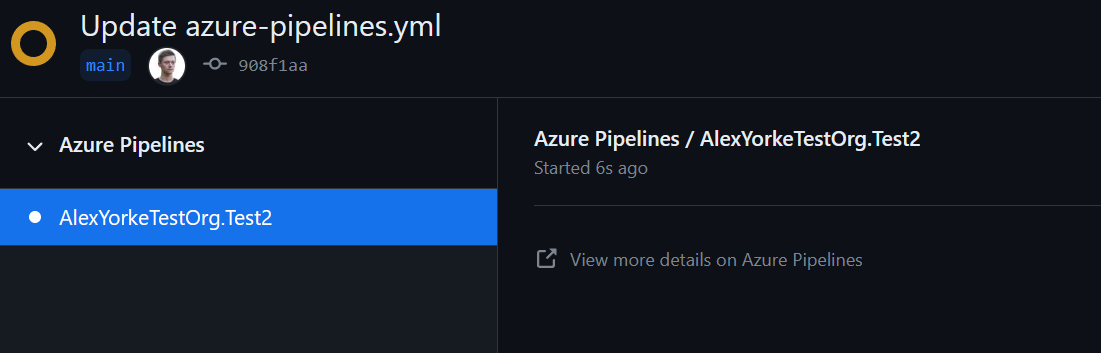
-
This allows you to use the same triggers that you had in azure devops, including pushing to your github repo, and then ado just clones the repo on its side and runs the pipeline. So therefore you are able to do everything inside of github, e.g., pull requests, issue management, etc. and then migrate to github actions later on (or never.) This means that you can move your code, and then have the capacity to incrementally move your pipelines, while minimally impacting the business.
Unanswered questions
-
What about code formatting and linting tasks?
-
fkirc/skip-duplicate-actions: Save time and cost when using GitHub Actions
-
GitHub bots to post on comments with test reports
-
Ignore paths for pushes such as README.md and other paths (is there a template for this?)
-
Lots of people use "working-directory"
-
Make sure that if you're running scripts, that someone who makes a PR can't just stick a script in that folder and have it run
-
"There's a convention for tagging built images with metadata including the run id, CI event type, and commit sha."
-
Updating dockerhub description
-
Docker container security scanning
-
The use of actions like
jaywcjlove/create-tag-actionandncipollo/release-actionto automate version bumping, tagging, and creating GitHub releases based on changes inpackage.json. -
Changelog generation
-
buildx?
-
You're allowed to use Python instead of Bash if you want to do more advanced scripting in your workflow
-
Uploading logs as compliance to github artifacts, BOMs?
-
Bats for bash script testing
-
Publishing debug symbols to private server
-
[GitTools/GitVersion: From git log to SemVer in no time (github.com)]
-
https://github.com/GitTools/GitVersion
-
https://github.com/conventional-changelog/standard-version
-
https://github.com/semantic-release/semantic-release
-
https://github.com/dotnet/Nerdbank.GitVersioning
-
https://github.com/adamralph/minver
-
https://github.com/conventional-changelog/conventional-changelog
-
https://github.com/googleapis/release-please
-
https://github.com/changesets/changesets
Security
Gradle Wrapper Validation is a security step used to ensure that the Gradle Wrapper script (gradlew) and its associated gradle-wrapper.jar file are legitimate and have not been tampered with. The Gradle wrapper is a script that invokes a declared version of Gradle, downloading it if necessary. As such, it's possible for a malicious actor to modify the gradlew script or the gradle-wrapper.jar to execute arbitrary code.
To prevent this, the Gradle Wrapper Validation action compares the checksum of the wrapper files against a public database of known checksums. If the checksums do not match, the GitHub Action will fail, indicating potential security issues with the wrapper in the repository.
Including Gradle Wrapper Validation is especially important for open-source projects that accept pull requests from external contributors, as they might introduce malicious changes to the wrapper files. However, it is a sound security practice for any project to use this validation step to ensure integrity.
Here's the snippet from the workflow showing the Gradle Wrapper Validation step:
- name: Validate the Gradle wrapper
  uses: gradle/wrapper-validation-action@v1
This step is placed in the workflow after checking out the code and before running any Gradle tasks. By validating the wrapper early in the CI process, it prevents potentially dangerous code from running and ensures that the build process is using the correct and secure version of Gradle.
Using the gradle/wrapper-validation-action is straightforward; it doesn't require you to configure any additional settings since it's a pre-made action designed specifically for this purpose. When this action runs, it checks the signature of the gradle-wrapper.jar and the gradlew/gradlew.bat scripts. If there's an issue with any of these files, the action will fail and prevent the workflow from proceeding to later steps that could execute compromised code.
Comprehensive output logging within a workflow is crucial for diagnosing issues, understanding the environment state, and verifying that actions are performing as expected. This helps maintainers and contributors quickly ascertain whether the workflow has succeeded or failed and, in the case of failure, provides valuable information to pinpoint the source of the problem.
In the provided workflow, we can observe several instances where output logging is executed to ensure that the environment is set up correctly, that the steps are completed as intended, and that the expected changes are taking place.
Here are a few examples from the workflow:
1. Printing Starting Environment:
- name: print starting environment
  run: |
    ...
    echo builder: ${{ matrix.builder }}
    echo pack_fmt: ${{ matrix.pack_fmt }}
    ...
    env | egrep '^(PATH|USER)='
    env | egrep '^(ch|CH)_'
    ...
This step logs various pieces of information, such as the builder and packaging format in use, system details (uname, lsb_release), user permissions, and the PATH environment variable after modifications. This provides a snapshot of the state before the test runs.
2. Setting Up and Validating Time Zone:
run: |
  ...
  sudo timedatectl set-timezone America/Denver
  ...
  timedatectl
After setting the time zone, the workflow logs the current system time zone configuration to confirm the change.
3. Validation of File Permissions:
run: |
  ...
  fgrep UMASK /etc/login.defs
  ...
  printf 'umask for %s: ' $USER && umask
  printf 'umask under sudo: ' && sudo sh -c umask
  ...
By grep'ing UMASK values and checking umask outputs, the workflow is validating that file creation permissions are restricted as expected.
4. Checking Installation and Version of Tools:
run: |
  ...
  command -v bats
  bats --version
  ...
  which shellcheck
  shellcheck --version
Here, the workflow ensures that the correct versions of bats and shellcheck are installed and available in the path.
5. Configuring and Asserting Correct Configuration:
run: |
  ...
  fgrep 'documentation: yes' config.log
  [[ $CH_TEST_BUILDER = buildah* ]] && fgrep 'with Buildah: yes' config.log
  ...
The fgrep command is used to verify that certain features are enabled or disabled as expected during the configuration step. The use of \[\[ \... \]\] tests, which are conditionals, helps confirm the expected outputs.
6. Ensuring Lark Dependency Correctness:
run: |
  ...
  [[ $(bin/ch-image -v --dependencies) = 'lark path: /usr/local/lib/python3.6/site-packages/lark/__init__.py' ]]
  ...
This checks that the Lark parser path is correct, confirming that the correct Lark library is being used for the ch-image.
These output logging and validation steps are spread throughout the workflow and serve as checkpoints to catch issues early and provide clarity on the state of the environment and tools at various stages of the CI process. This level of detail in logging is highly beneficial for maintaining quality control and ensuring consistent and reliable operation of the continuous integration process.
The Docker CI Release workflow you've provided is fairly complex and has several components that are tailored to Docker image building and multi-architecture builds, along with security scanning and Docker Hub interactions. Let's break down the different parts and highlight what might be especially useful for other workflows.
Here are some features of the workflow:
-
Triggers: The workflow triggers on pull requests and pushes to the
masterbranch, as well as on tags that follow the semantic versioning pattern (e.g.,v1.0.0). -
Path Filtering: Uses the
dorny/paths-filter@v2action to determine which Dockerfiles have changes. This is useful for monorepos or projects where you want to build or test only the parts that have been modified. -
Multi-Job Strategy: The workflow defines separate jobs for various architectures (
netflow,nginx,siridb,ucrm,unms). This modular approach makes the CI process more parallel and efficient. -
Conditional Job Execution: Each job has a condition that uses the outputs of the
changesjob to determine whether to run, based on whether there were changes to the specific Dockerfile or if a new version tag is being pushed. -
Multi-Architecture Builds: Through the
docker/setup-buildx-action@v1anddocker/setup-qemu-action@v1actions, the workflow is set up to build Docker images for multiple architectures, such asamd64,arm64, and more. This is critical for supporting Docker images on various hardware platforms. -
Build Arguments: The workflow dynamically creates build arguments to pass to Docker builds, including a version label, build date, and Git SHA for traceability of image builds.
-
Security Scanning: Uses
anchore/scan-action@v2to scan the built image for vulnerabilities, andgithub/codeql-action/upload-sarif@v1to upload the scan results to GitHub. Security scanning is critical for maintaining trust in the Docker images you are publishing. -
Docker Hub Interaction: The jobs log into Docker Hub using secrets and push the built images there, updating the repository description with
peter-evans/dockerhub-description@v2. This automation of Docker Hub interactions is a time-saver and ensures that your Docker images and descriptions are always up-to-date. -
Cleanup: Ensures that Docker credentials are removed after the workflow run, which is a security best practice.
-
Tagging Logic: There there is specific logic for assigning tags to the built images based on branch, tag name, or commit information, which can be extremely useful for automating the release and tagging process in a consistent manner.
Components that might be useful for other workflows:
-
The use of path filters to determine if a job should run based on the files changed.
-
Automated multi-architecture builds using Buildx and QEMU.
-
Security scanning of built images and reporting of results for Continuous Security Integration.
-
Automating Docker Hub interactions such as image pushing and description updates, particularly valuable in continuous delivery/deployment scenarios.
-
The tagging and environment preparation logic for Docker images can be adapted to other building/packaging workflows where similar granularity and customization are required.
Each of these features and strategies can be individually applied or adapted to enhance other GitHub Actions workflows that require similar functionalities, even if not used all together as in this instance.
The segregation of PR code from main CI scripts is a security measure to prevent untrusted code in a pull request from modifying the behavior of the CI system. In the context of large open-source projects like Apache Airflow, contributions come from various contributors. If a CI system directly executed code from a PR during the build process without this kind of segregation, it could potentially expose sensitive data or allow for the execution of malicious code.
In the provided workflow, this segregation is achieved through steps that ensure CI-related scripts cannot be overridden by the code in a PR. Here is how this workflow implements it:
- Separate Checkout for Main Repository Scripts:
The workflow checks out the repository's trusted code into a separate path named main-airflow. This ensures that the code used to build the CI images is the code as it is in the main repository, not the possibly altered PR version:
- name: "Checkout ${{ github.ref }} ( ${{ github.sha }} ) to 'main-airflow' to use main scripts"
  uses: actions/checkout@v2
  with:
    path: "main-airflow"
  if: steps.defaults.outputs.proceed == 'true'
- Overwrite CI Scripts with Trusted Main Version:
After checking out the code from the PR, another step overrides any CI-related scripts with the ones from the main-airflow directory. This ensures that even if a PR includes changes to CI scripts, these changes won't be used. Instead, the workflow uses the scripts from the main repository that it checked out earlier:
- name: "Override 'scripts/ci' with the ${{ github.ref }} version so that the PR cannot override it."
  # We should not override those scripts which become part of the image as they will not be
  # changed in the image built - we should only override those that are executed to build
  # the image.
  run: |
    rm -rf "scripts/ci"
    mv "main-airflow/scripts/ci" "scripts"
  if: steps.defaults.outputs.proceed == 'true'
By using these steps, the workflow ensures that no matter what changes are proposed in a PR, the critical CI pipeline scripts executed remain those from the main repository, thus maintaining their integrity and security. These measures are critical for large projects where CI pipelines often have access to secured environments and secret credentials. It is a useful practice for any CI system that needs to guard against the injection of harmful changes through pull requests.